SEAL-User-Guide
Overview
Roles:
-
Sender - john@example.com
-
Recipient - emma@example.com
Use case
I. John (john@example.com) wants to send a secure message to Emma (emma@example.com).
-
John sends an email from his email client to Emma.
-
Emma receives an email notification (not the actual message content) with an invitation to read the encrypted message.
-
Emma authenticates against SEAL secure message services using a unique combination of her email address and phone number.
-
Once authenticated, Emma can read the encrypted message.
II. Emma Replies Directly to John
-
Emma, who has authenticated and read the message from John.
-
Emma selects the
Replybutton. -
Emma writes a reply message and may add attachments.
-
Emma selects the
Sendbutton. -
The reply message is sent securely to John.
| Step | Action | Screen | Explanation |
|---|---|---|---|
| — | Sender (john@example.com) sends a secure message to Recipient (emma@example.com) | N/A | The sender composes and sends an email via his email client. |
| 1 | SEAL system sends a notification to Emma inviting her to read the encrypted message. | 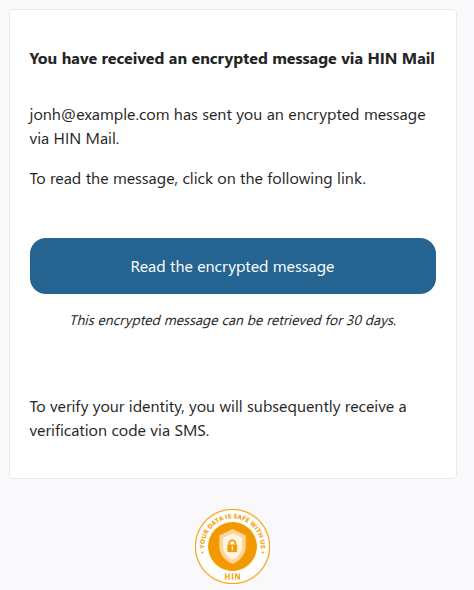 | The email contains a link to the secure message (not the content itself).Troubleshooting: Check spam/junk folders if no email is received. |
| 2 | Emma clicks the orange button and is redirected to an authentication page with two options:a) Single recipientb) Multi-recipient | a) If sent to one recipient, only a phone number is required.b) If sent to multiple recipients, each must enter both their email address and phone number.Note: Authentication is based on the combination of email and phone number. | |
| 2a | (Single recipient) Emma enters her phone number to authenticate. | 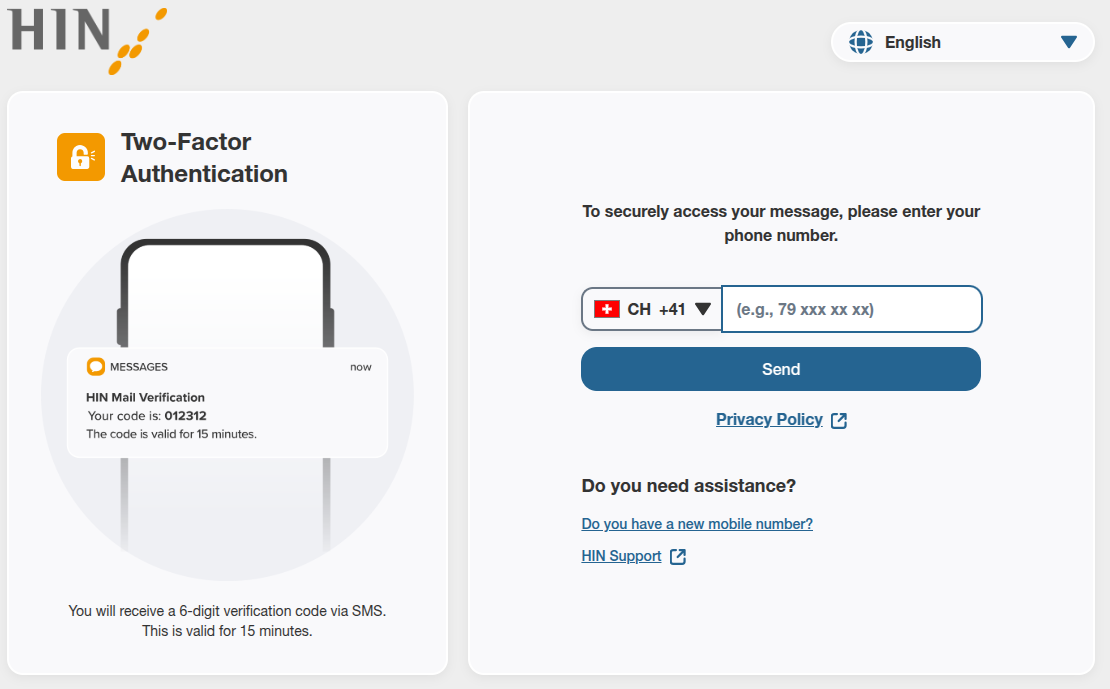 | She authenticates using the phone number tied to the email that received the invite. |
| 2b | (Multi-recipient) Emma enters her email address and phone number. | 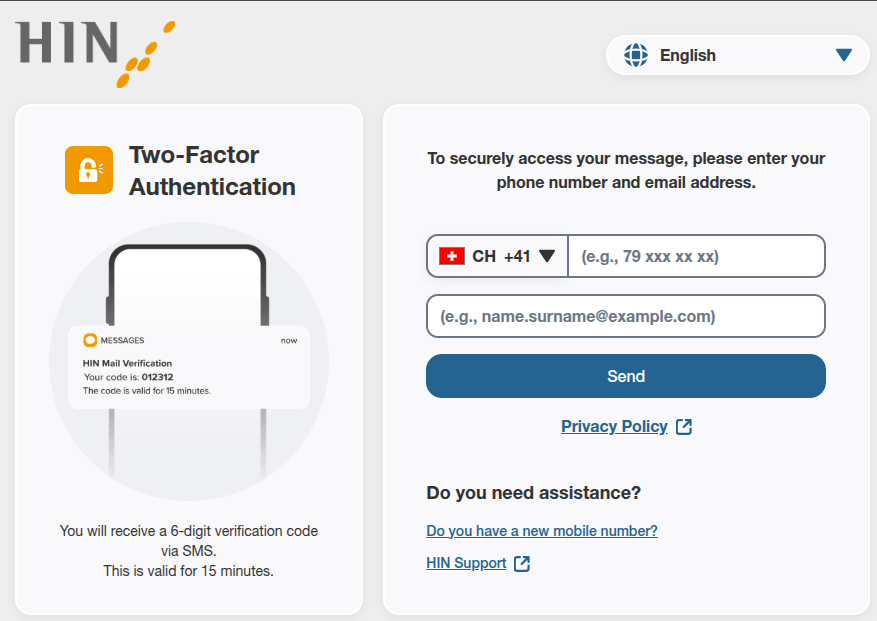 | Each recipient must use both their email and phone number for access. |
| 3 | Authentication code | 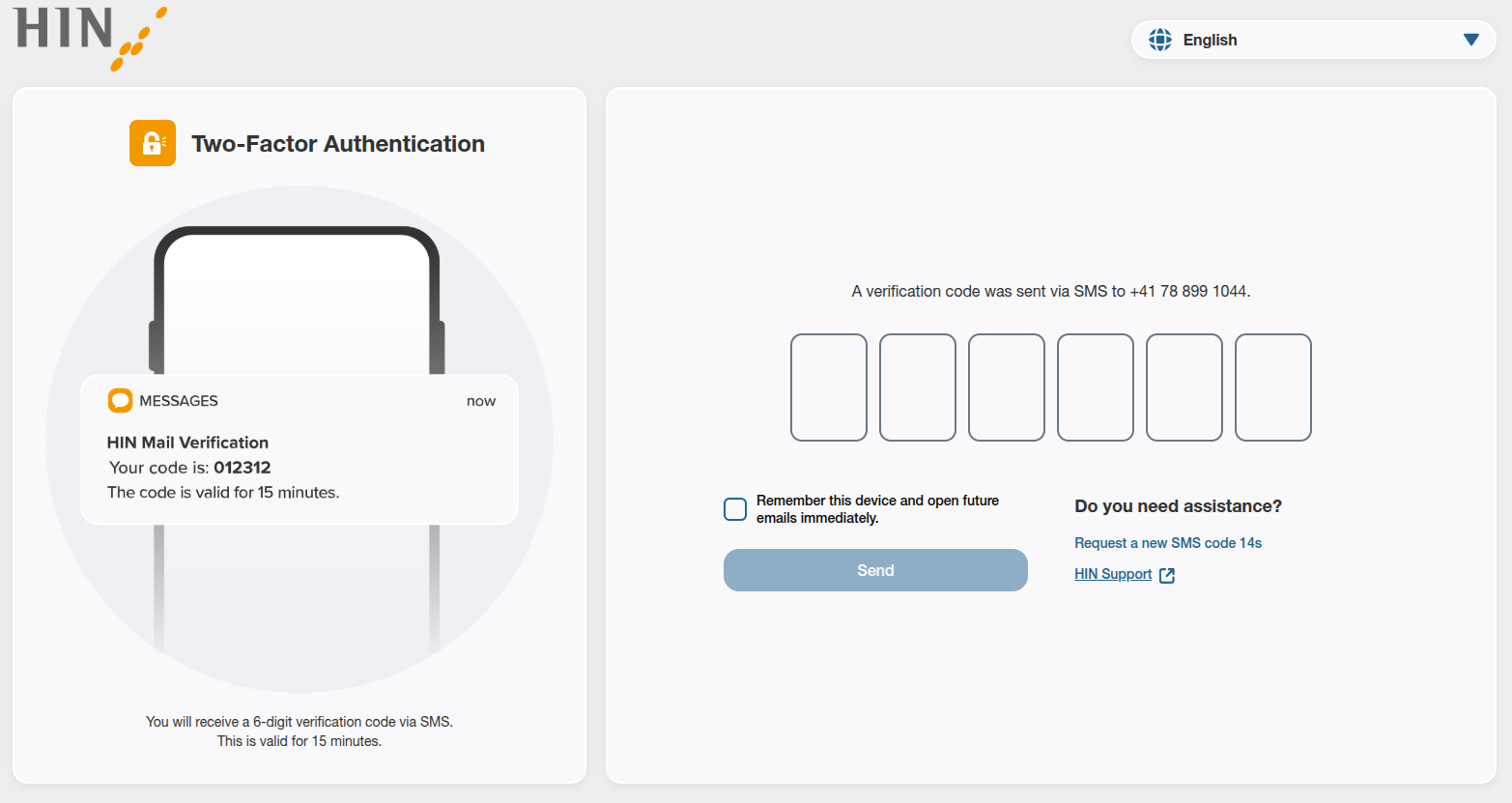 | A 6-digit code is sent via SMS (valid for 15 minutes).Optionally, enable Trust this device for 7 days unless logged out or cookie is cleared. |
| 4 | Read message | 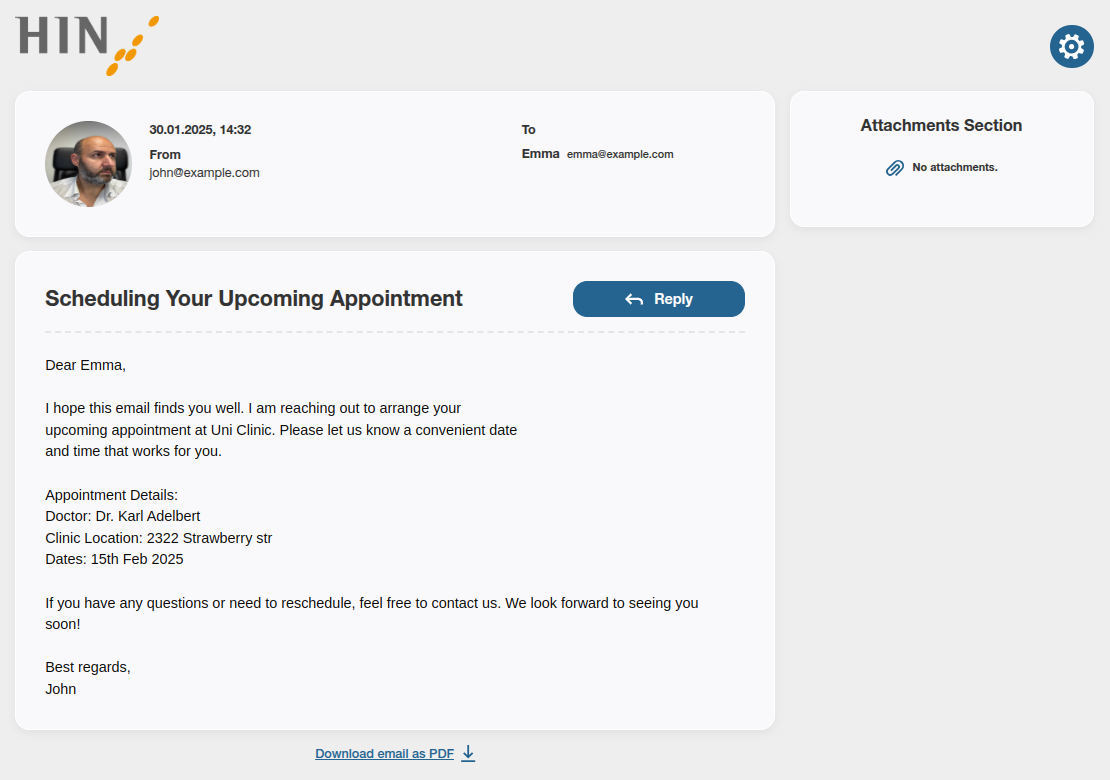 | Available Features:- Read the decrypted message- Download all/individual attachments- Download as PDF- Reply |
| 5 | Reply functionality | 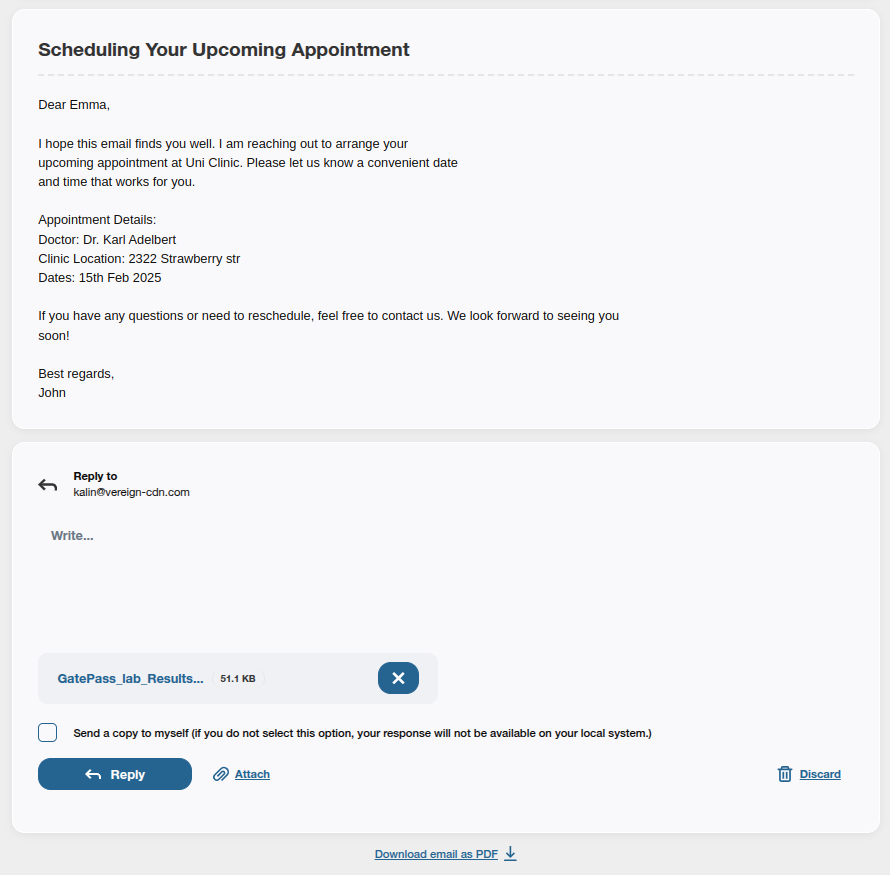 | Reply Options:- Add text- Attach files (max 10MB)- Optionally send a copy to your own emailExample Flow:1. Sender sends secure message2. Recipient reads & replies3. Reply is sent to both Sender and Recipient |
| 6 | Settings | 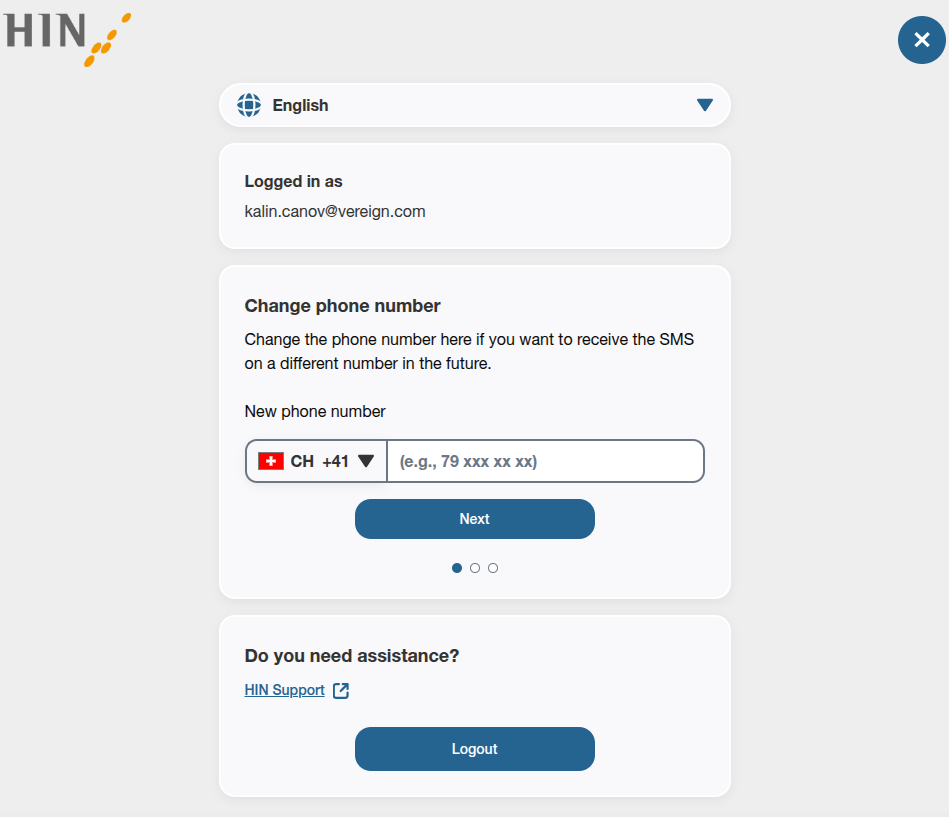 | After authentication, click the settings icon (top right corner).Features:1. Change language2. View/change phone number3. Email address used4. Access HIN support5. Logout (disables "Trust this device") |
| 6.1 | Language selection | 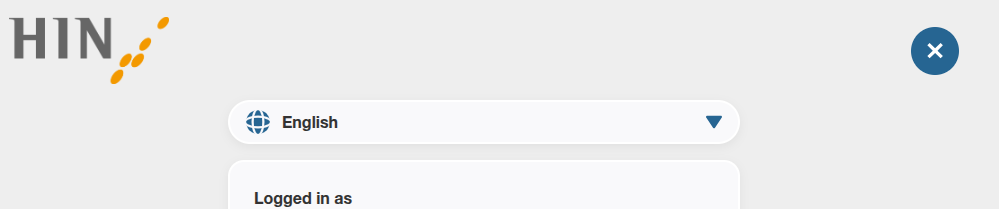 | Users can choose a default language in Settings. The system will send emails in that language. The first message will include all 4 supported languages. |
| 6.2 | Change phone number | Two methods:a. While logged in: via Settings b. While logged out: via Support page | |
| 6.2.a | a. Change phone number from Settings | 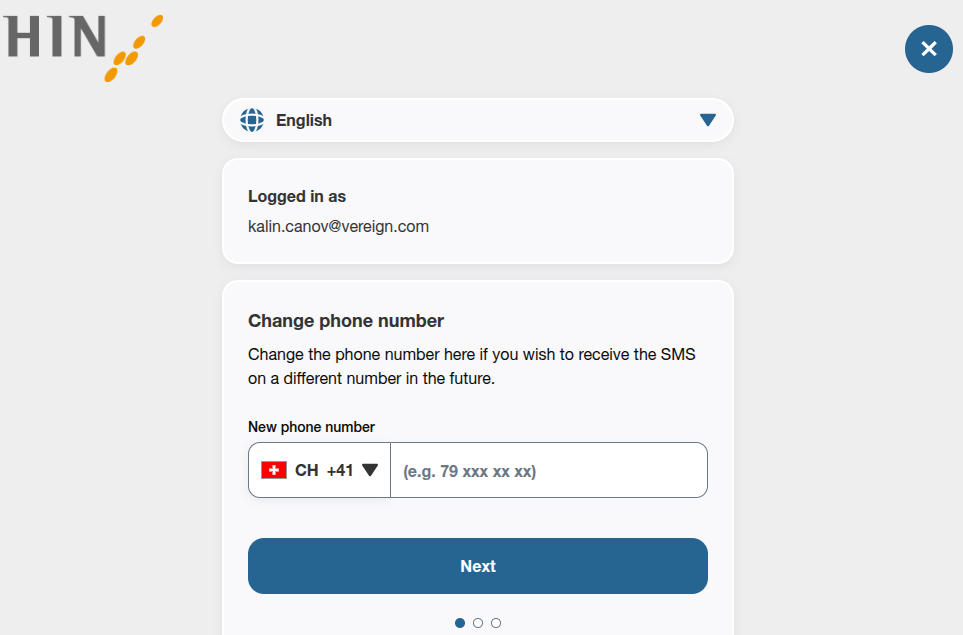 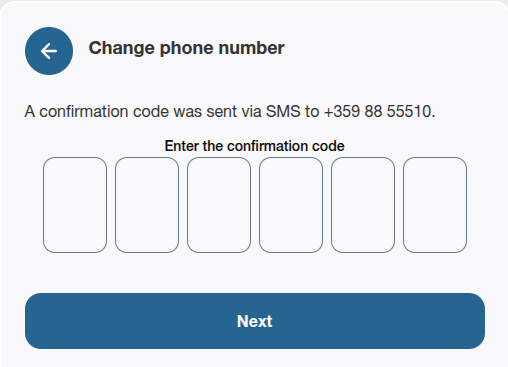 | Go to Settings -> Change phone number section. Follow the wizard guide: 1. Starting the process with entering your new phone number;2. Enter the received confirmation code on new phone number; 3. After entering correct verification code select Next and you will be able to use the new number to read your secure messages. |
| 6.2.b | Change phone number from Support page | | Once you are at page for changing phone number while you are not authenticated: Enter your current number and email and follow the wizard guide -> System will send you confirmation email message. Check your email box to proceed with the process -> From the received email , select Change phone number and you will be forwarded at web page to proceed with the process -> Enter you new phone number -> Validate the new number by entering verification code |